You can delete your user account with Elementor if you wish. Once you delete your account, you will lose access to your Elementor websites, subscriptions, dashboard and support. Deleting your account is an irreversible action so proceed with caution.
Delete your account
There are two ways to delete your account:
- Using the Contact Us form
- Using the My Elementor dashboard (For Elementor Pro users)
Delete account vs. cancel a plan: choose what you actually need
You don’t need to delete your entire account if your goal is to stop charges or remove a plan you no longer use.
- If you want to stop paying but keep your account, disable auto‑renew on the specific subscription. Your account remains open, but that plan will expire at the end of its current term.
- If you want to remove only one plan, cancel that subscription (turn off auto‑renew). You can keep the main account for other products or future use.
- If you no longer need anything and want all data removed, you can permanently delete your account. Remember this is irreversible.
Move a subscription to another email or account
There are a few ways to use your subscription with a different email, depending on your plan and eligibility.
- Change the email on your existing account. Follow the steps outlined here. This is the easiest option when you simply want the subscription to be under a different email you own. Update the account email in your profile settings; no deletion is needed.
- Transfer subscription ownership (if supported by your plan). Some plans let you transfer a subscription to a new owner from your account dashboard. The new owner accepts the transfer using their email/account. Do not delete your account until the transfer is accepted, or you will lose access. For details, see Transfer your license between websites, Transfer your Elementor Pro license key, Transfer your subscription or Transfer an Elementor Host website, whichever is relevant.
- Directly moving a subscription between existing accounts may not be supported for all plans. If transfer isn’t offered in your dashboard, you’ll need to keep the subscription on the current account or cancel and repurchase under the desired account/email.
- If you recently renewed or purchased and are within the 30‑day refund window, you can request a refund and then buy the plan again under the correct account/email.
Deleting your account using the Contact Us form
To delete an account using the Contact Us form:
- Go to Elementor.com.
- Scroll down to the footer.
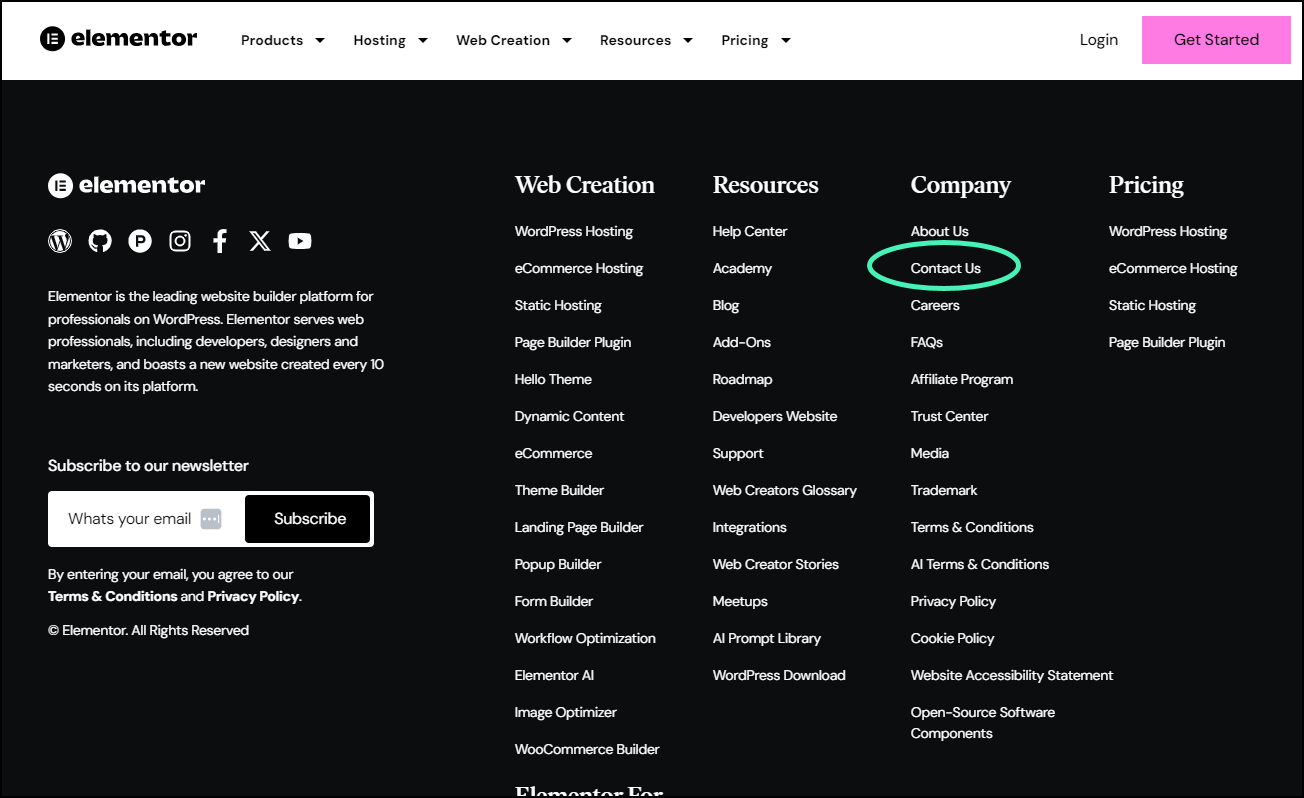
- Click Contact Us.
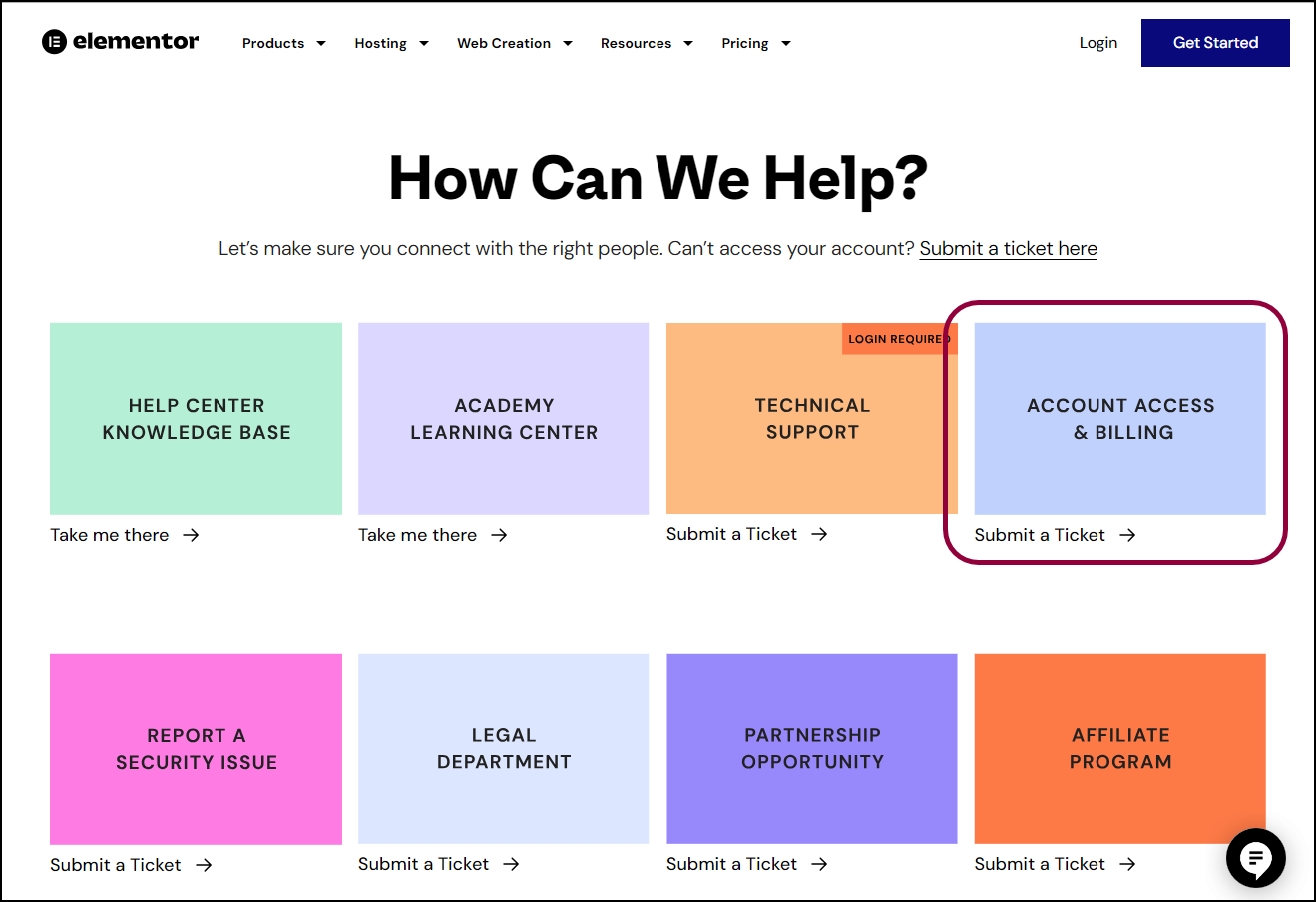
- Scroll down to Account Access & Billing.
- Click Submit a ticket.
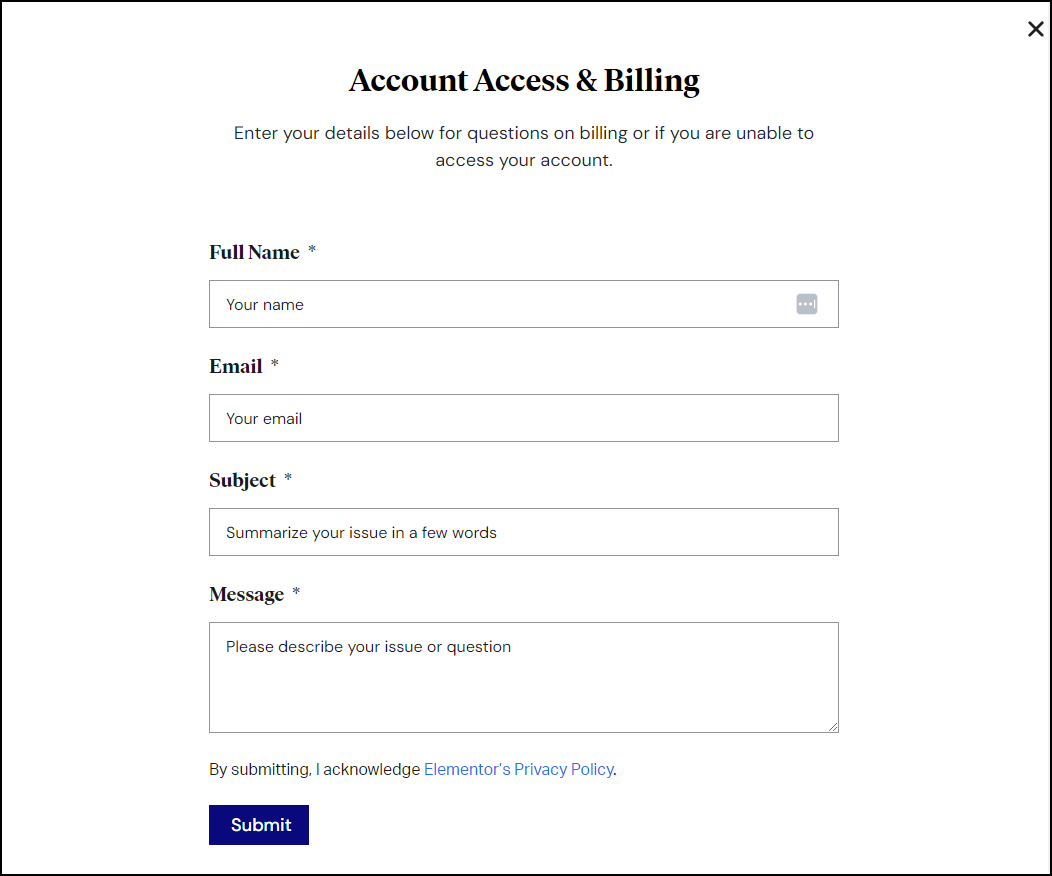
- Fill in the form. In the Subject field, line, enter Delete my account. In the Message field, enter any other relevant details.
Your request will be evaluated by a member of the accounts and billing team. The team member will send an email to the address associated with the account, asking you to confirm that you want to delete the account. The account will only be deleted once confirmation is received.
Deleting your account using the My Elementor dashboard
To delete an account using the My Elementor dashboard:
- Go to your My Elementor dashboard.TipYou can go directly to the support form.
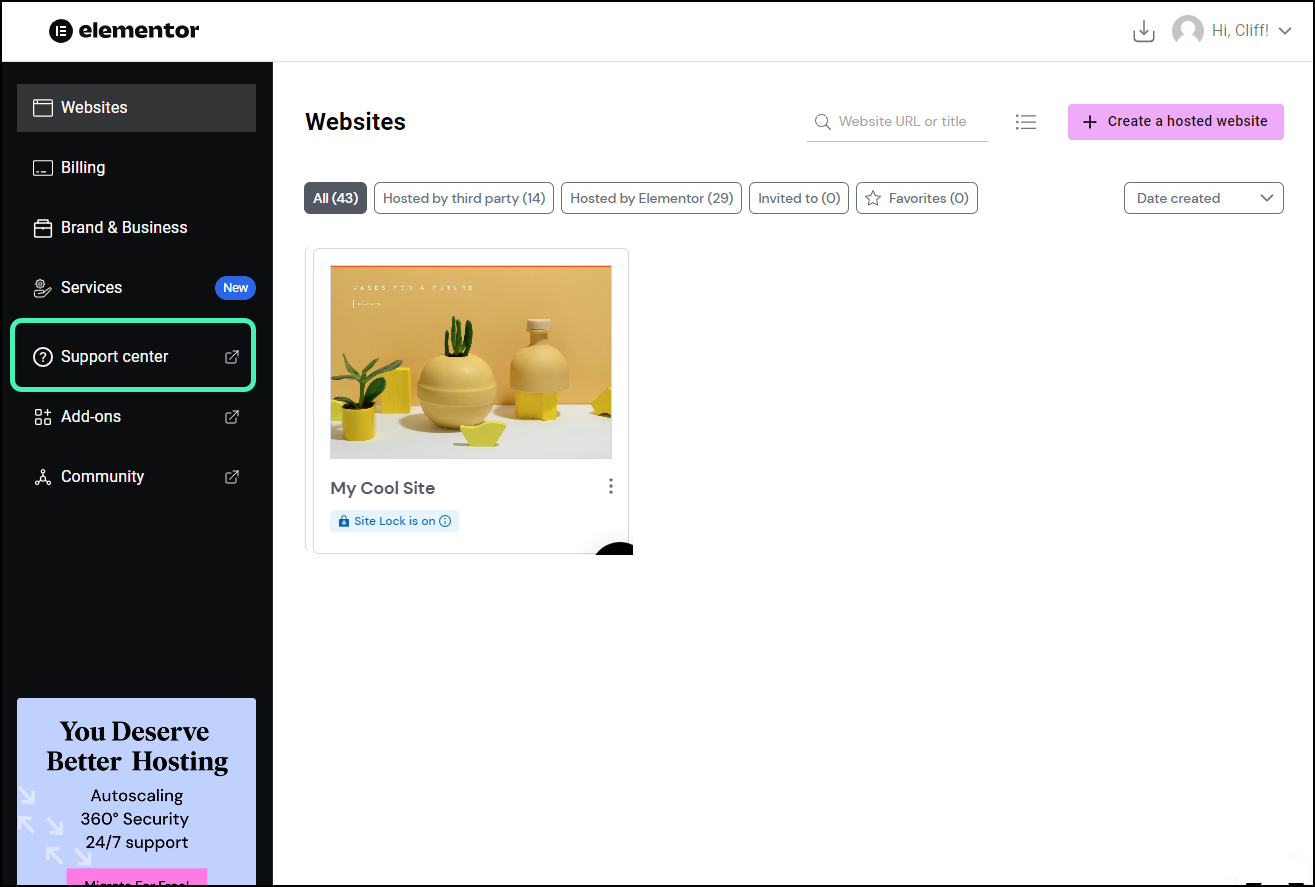
- Click the Support center tab.
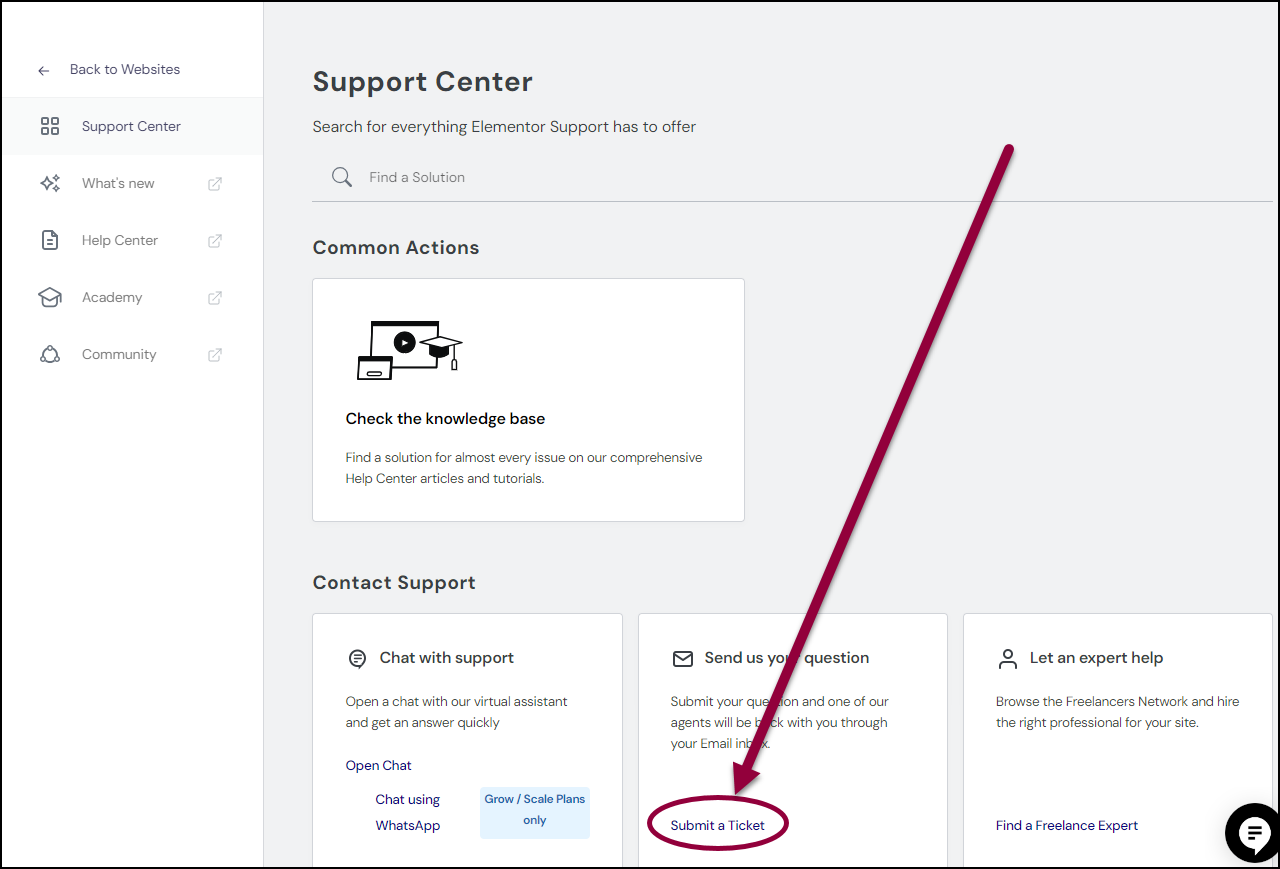
- At the bottom of the screen click Submit a Ticket.
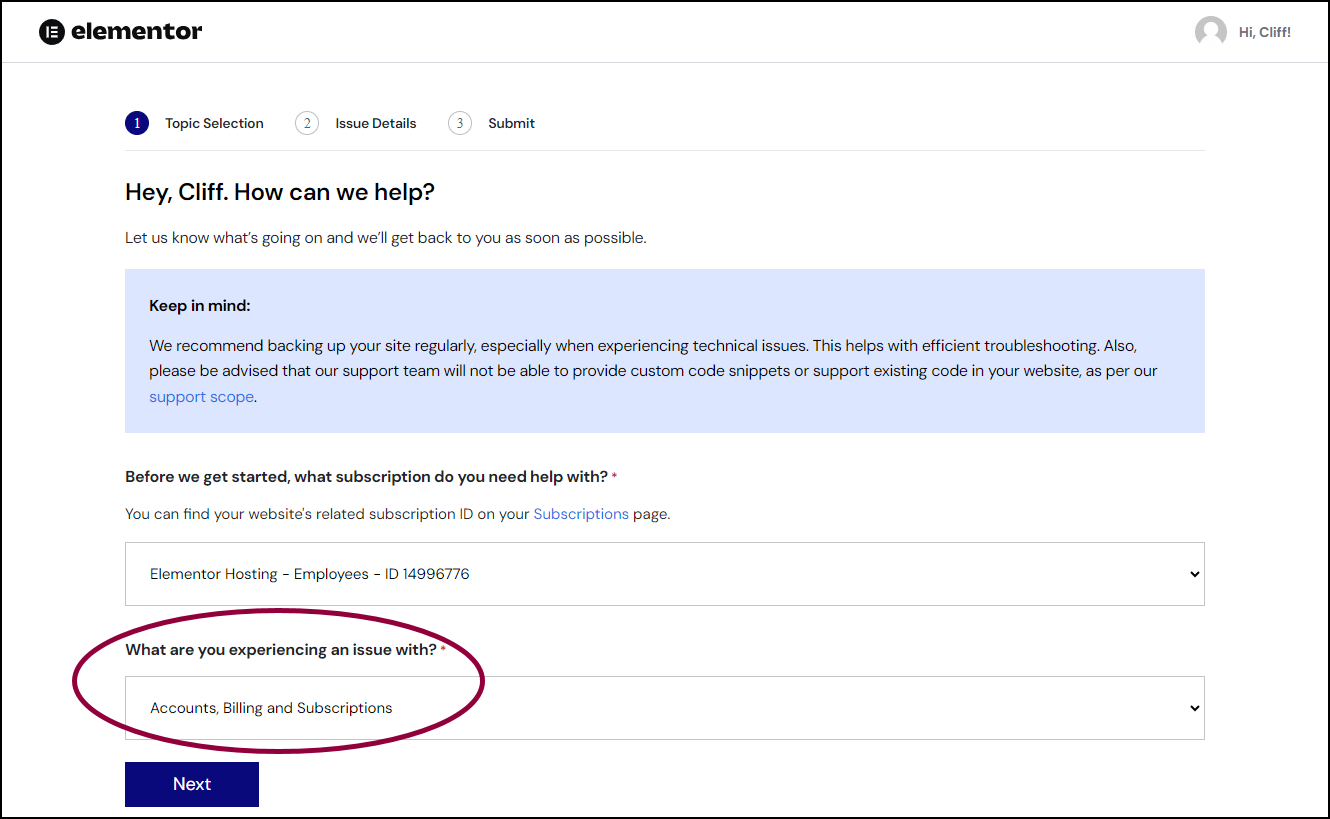
- In the What are you experiencing an issue with? field, select Accounts, Billing and Subscriptions.
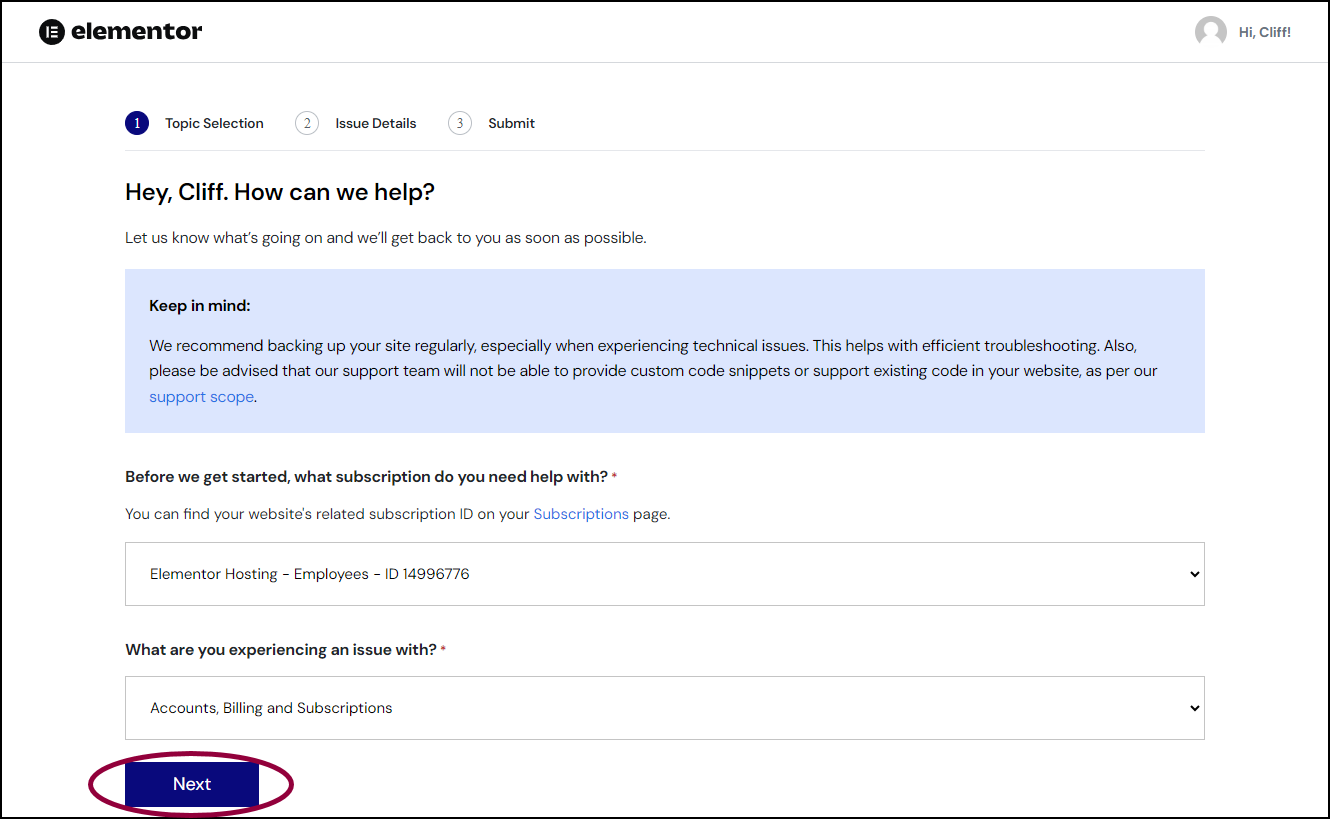
- Click Next.
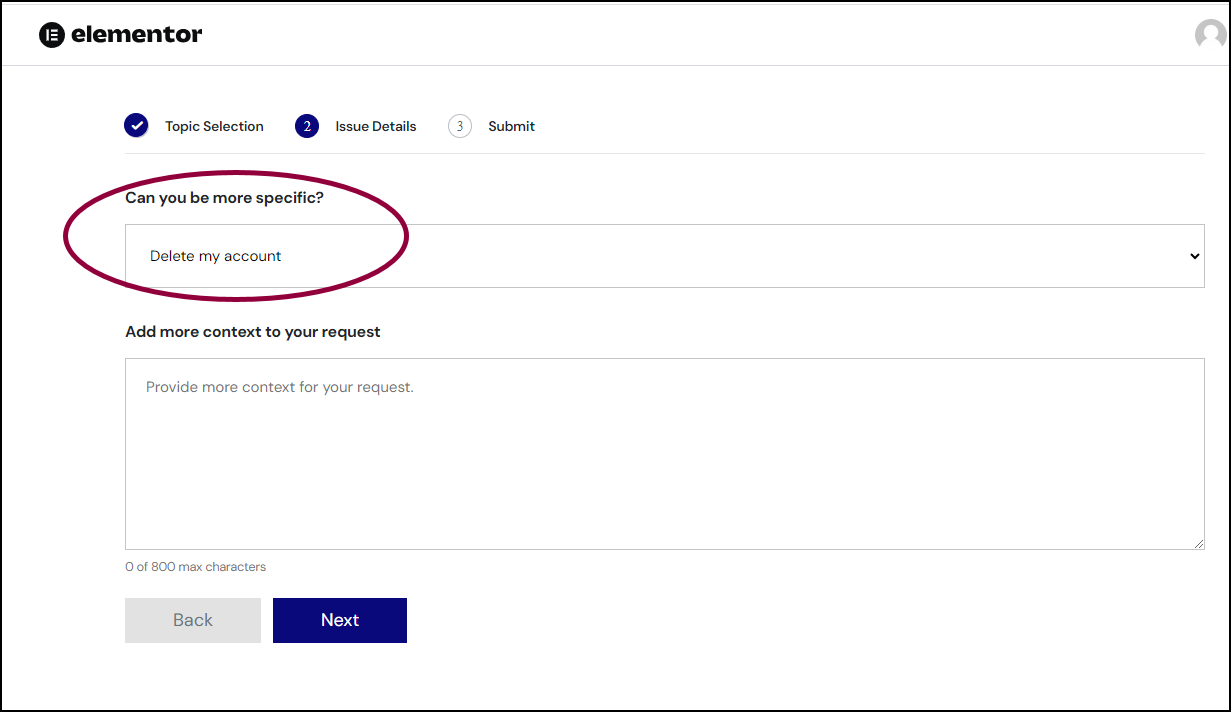
- In the Can you be more specific? field, select Delete my account.
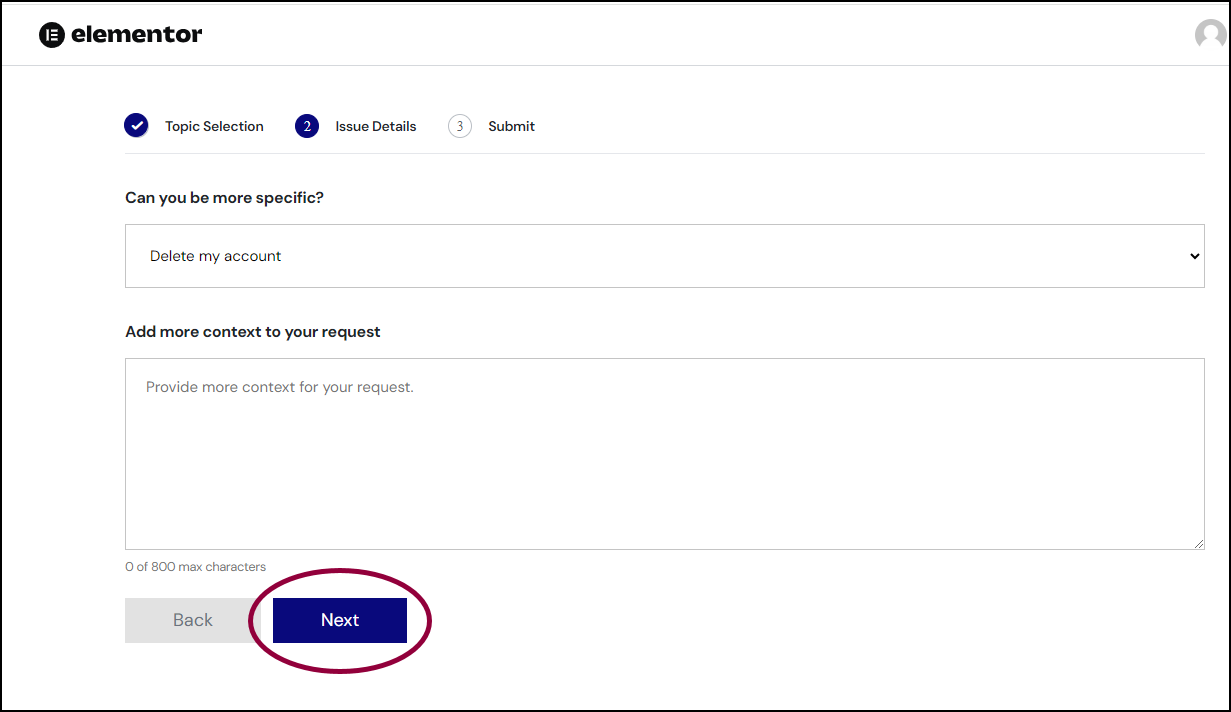
- Click Next.
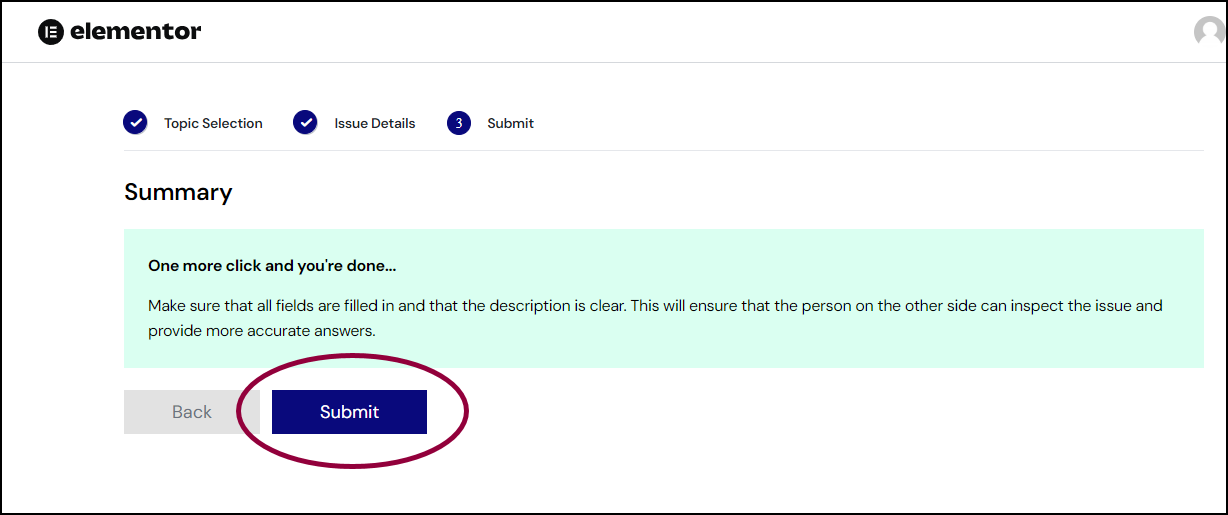
- Click Submit.
Your request will be evaluated by a member of the accounts and billing team. The team member will send an email to the address associated with the account, asking you to confirm that you want to delete the account. The account will only be deleted once confirmation is received.
Stop future charges and remove payment methods
Account deletion does not by itself cancel payments that are already scheduled. Do this first to avoid future charges:
- If you can access your account, disable auto-renew. For details, see Activate or deactivate auto-renewal. Once auto‑renew is off, your plan will remain active until its current term ends, then it will expire and be canceled. No further charges will occur unless you manually renew using a payment method.
- If you can’t access your account, contact support. For details, see Contact support if you can’t login and ask us to disable auto‑renew for you before proceeding with account deletion.
- Payment method removal • When you have no active subscriptions with auto‑renew, there is typically no stored payment method. If a method still appears, cancel auto‑renew first; then contact Support to remove any remaining stored payment details.
Refunds and account deletion
If you want your latest charge refunded, request the refund before deleting your account. Once the account is removed, we may be unable to locate your purchase details or process a refund. For details about our refund policy, see Can I cancel and get a refund.
Delete your account if you can’t access the account
If you can’t access your account, you’ll have to access support through the Elementor.com website. For details, see Contact support if you can’t login.
If we can’t find an account for your email
If you ask us to delete an account but we can’t locate one for the email you provided, we can’t process the request until we identify the correct account.
- Check for other emails: Try alternate emails you may have used (work, personal, aliases, sign‑in with Apple/Google).
- Help us find the account: Provide recent order or invoice numbers, the last 4 digits of the card used, PayPal transaction ID, billing name and address, or the domain(s) where the product is/was used.
Once identified, we’ll ask for the required deletion re‑confirmation from the registered email or complete identity verification if you no longer control that address.

