Some features of Elementor, such as using the Template Library, require an Elementor account. If you do not have an account, you can create a free account very easily.
- Go to My Elementor.
- Click the Create an Account link.
You have four options to create your account:
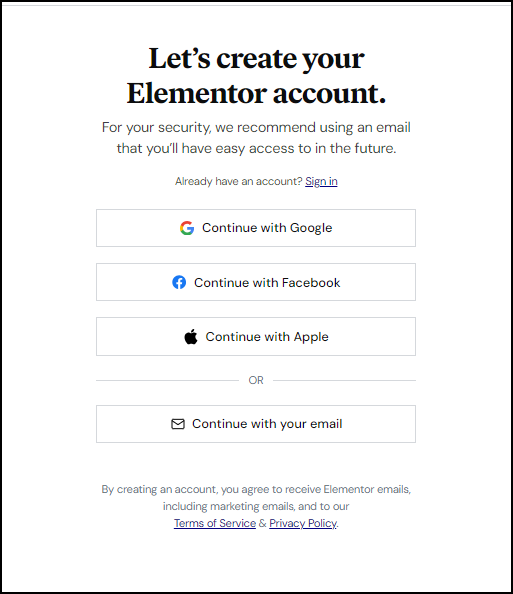
- Choose the method you prefer to create your account. Your options are:
| Click this | To do this |
| Continue with Google | Create an account using your Google ID. In the future, you’ll be able to login by just clicking Continue with Google. |
| Continue with Facebook | Create an account using your Facebook ID. In the future, you’ll be able to login by just clicking Continue with Facebook. |
| Continue with Apple | Create an account using your Apple ID. In the future, you’ll be able to login by just clicking Continue with Apple. |
| Continue with your email | Create an account using your email address. You will then enter your email address, select a password and click Create account. In the future, use this email and password to login to Elementor. |
Note
If you created your account with an email address, you need to verify your login with a code you receive by email. Make sure you have access to the email account you register with.
Troubleshooting – Email already exists error
If you receive the error while creating an account:
- If you see “email address already exists,” that email is already registered. Use Log in or reset the password for that address.
If you receive the error when adding a user as a WordPress admin:
- The error means a user with that email already exists in WordPress. From WP admin, navigate to Users > All Users then click the username to access their info. You can reset their password from here if you need to.
- Only site administrators can add/manage users. If you can’t add users, have an administrator grant you the proper role or add the user for you.

